Convert table to JSON
Our text blocks are very useful for making, for example, USPs manageable from the platform. Although text blocks can be used everywhere, they are limited to containing only text. In some cases, it is very useful to use a JSON structure, so you can, for example, loop over the data.
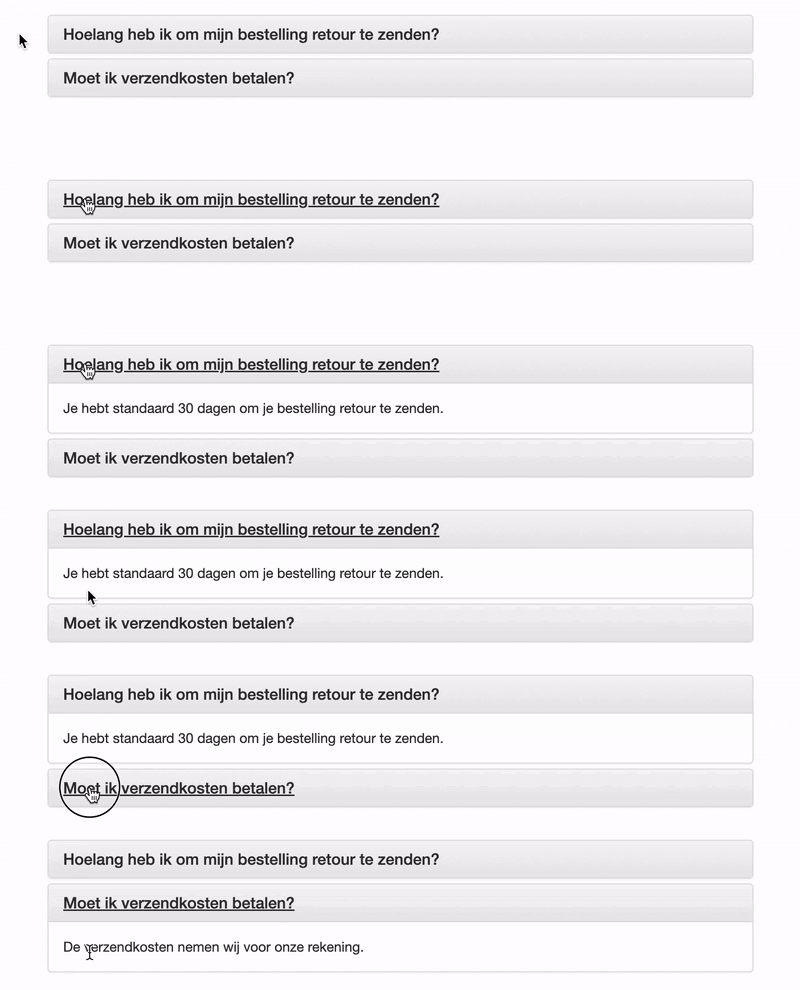
Take a FAQ block as an example, which you can open and close by clicking on the question. To set this up correctly, you could create multiple text blocks and loop over them. However, this is a lot of work for the user when updating or creating, for example, ten text blocks. An easier way is to add a table in a text block. In this table, we can create two columns for the question and the answer.
Creating a text block
Go to your shop's dashboard and click on 'Text blocks'. Then click on 'Add text block'. In the 'Text block' field, enter a title that will appear above the FAQ block, e.g., 'Frequently asked questions about shipping'. Then, in the 'Unique name' field, enter a unique name (identifier) that you can call within the template, e.g., 'shipping_faq'.
In the 'Text block content' field, we will format the table. You can do this by following the GIF below. Create a table with two columns.

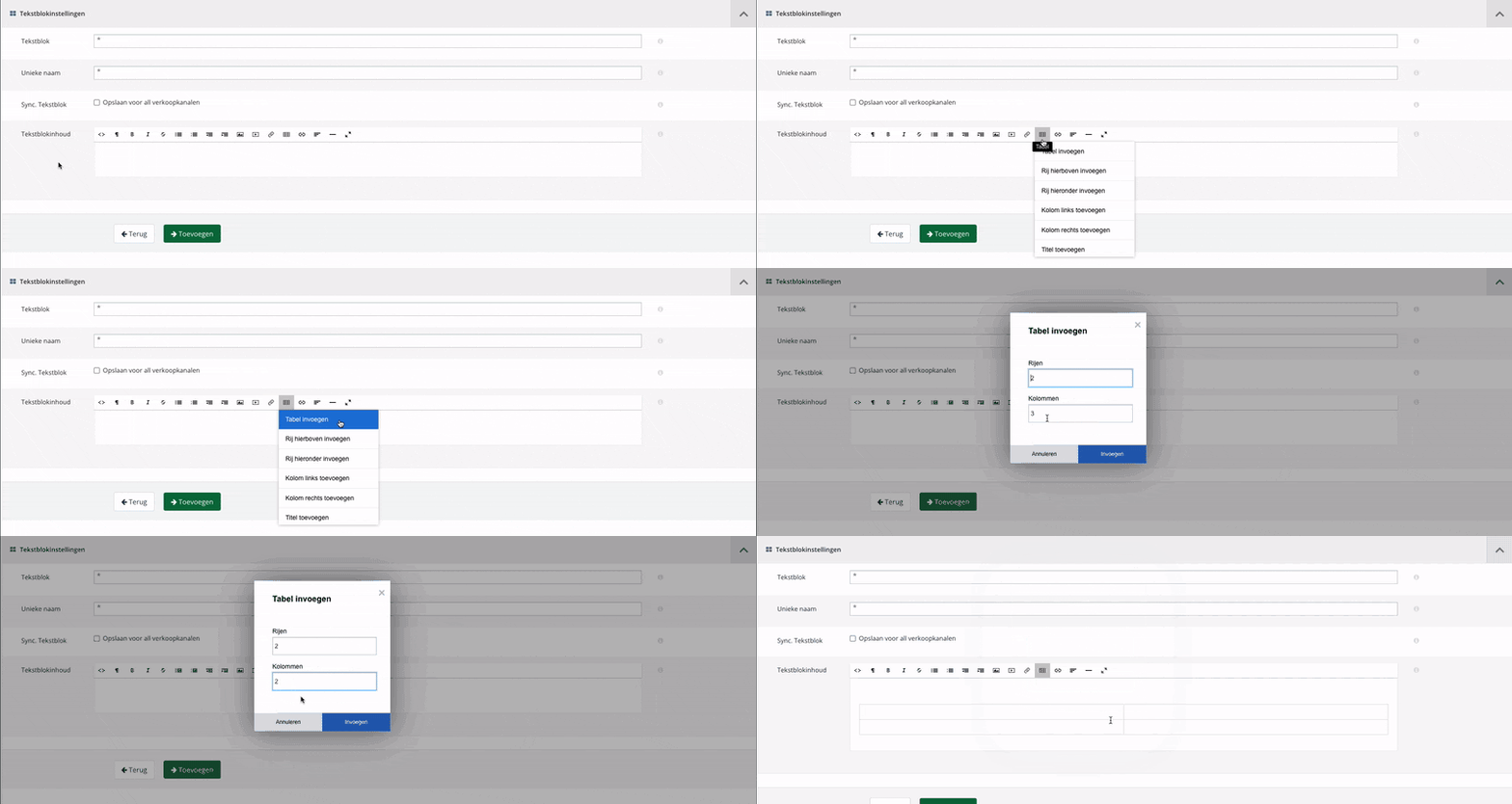
Now fill the rows with a question in the first column and an answer in the second column, and save the text block.


Convert the table to JSON in Twig
Now that we have created a text block containing a table, we can call it in Twig and store its content in a variable.
1{% set faq_tekstblok = blocks.shipping_faq.content %}To store the JSON data, we also create a variable for it. We initialize it with an empty array where we will add the data.
1{% set faq_json = [] %}To access the rows, we first strip out many HTML elements that are no longer needed using the replace filter. We then split on </tr> to create an array of rows. The [:-1] ensures the empty row at the end is not included. We now have an array with two entries for the two cells of each row.
1{% set faq_tekstblok_rows = faq_tekstblok|replace({ "<table>": "", "</table>": "", "<tbody>": "", "</tbody>": "", "<tr>": "", "<td>": "" })|split("</tr>")[:-1] %}We can now loop over these rows to populate the faq_json variable. First, we split the row to get the cells by splitting on </td>. Again, we trim the empty entry from the resulting array. To store these cells as question and answer in faq_json, we use the merge filter. This filter takes an array or object as a parameter (depending on whether the initial value is an object or array) and merges it with the existing faq_json. This is done for each row thanks to our loop.
1{% for row in faq_tekstblok_rows %}
2{% set row = row|split("</td>")[:-1] %}
3{% set faq_json = faq_json|merge([{ "question": row|first|trim, "answer": row[1]|trim }]) %}
4{% endfor %}
The result stored in faq_json is now an array of two objects. Each object has a vraag and antwoord.
1[
2{
3question: "How long do I have to return my order?",
4answer: "You have a standard 30 days to return your order."
5},
6{
7question: "Do I have to pay shipping costs?",
8answer: "We cover the shipping costs."
9}
10]
11
You can now use this variable within your Twig code. For example, you can create a loop to build an accordion based on Bootstrap.
1<div class="panel-group" id="accordion" role="tablist" aria-multiselectable="true">
2    {% for item in faq_json %}
3        <div class="panel panel-default">
4            <div class="panel-heading" role="tab" id="heading-{{loop.index}}">
5                <h4 class="panel-title">
6                    <a role="button" data-toggle="collapse" data-parent="#accordion" href="#collapse-{{loop.index}}" aria-expanded="false" aria-controls="collapse-{{loop.index}}">
7                        {{item.question}}
8                    </a>
9                </h4>
10            </div>
11            <div id="collapse-{{loop.index}}" class="panel-collapse collapse" role="tabpanel" aria-labelledby="heading-{{loop.index}}">
12                <div class="panel-body">
13                    {{item.answer}}
14                </div>
15            </div>
16        </div>
17    {% endfor %}
18</div>